Nokia is not longer the same Nokia we are used to. After the mobile department was sold to Microsoft, the remaining parts needed to reinvent themselves. What came of this was a highly intelligent launcher in a pre-beta version, the Z Launcher. It has arrived with an interesting new concept in tow.
Showing posts with label Mobile. Show all posts
How to install Android 5.0 Lollipop on a Nexus 4
Posted by Nikhil Chawra 11/20/2014
Because it can take a while for over-the-air (OTA) updates to land on phones, we're here to help out. Though the Nexus 4 Android 5.0 Lollipop update should be arriving around the world right now, you still might not be able to get your hands on it just yet. Find out how to install Android 5.0 Lollipop on your Nexus 4 right now in our guide.
Requirements
You will need a few things to start with:
- ADB tools and driver
- Factory image for Nexus 4:
Extract the files onto your computer once downloaded.
Unlock bootloader
If you have already unlocked the bootloader of your Nexus 4 then you can skip this step, but if not, here's how to do it:
- Turn off your Nexus 4.
- Press and hold Volume Down and Power to enter the Fastboot menu.
- Connect the Nexus 4 to your computer via USB cable.
- Go into the adb-tools folder and hold the Shift key on your keyboard then click the right mouse button on any free area of white space in the Windows Explorer window. Select ''Open Command Window Here'' with your left mouse button.
- Once the command window is open, enter the following command to unlock the bootloader:
- fastboot oem unlock
- Press the Volume Up button on the Nexus 4 to accept the command and press the Power button to confirm. The bootloader will now be unlocked, and all data will be lost.
Install Factory Image
- Get your Nexus 4 into Fastboot by turning it off and pressing Volume Down and Power until Fastboot appears.
Put your Nexus 4 into Fastboot to install Android 5.0 Lollipop. / ©
- Connect the Nexus 4 to your computer with a USB cable.
- On your computer, navigate to the unpacked directory that contains the factory image for your device.
- Double click the flash-all.bat file and wait until the installation is finished. Your Nexus will reboot itself after completion.
Troubleshooting
If your Nexus 4 gets stuck in a bootloop at the Google logo on startup, do the following:
- Disconnect your Nexus 4 from your computer and turn it off.
- Press and hold the Volume Down and Power button to enter Fastboot.
- Use the volume buttons to highlight Recovery Mode and press Power to confirm
- If you have a custom recovery like CWM you'll enter it immediately. If you see the Android laying on its back just press the Power button and Volume Up button briefly to enter stock Recovery.
- In the recovery menu, use the volume buttons to highlight wipe cache partition and press Power to confirm.
- Scroll down to wipe data/factory reset and press Power to confirm. Reconfirm your seelction and let your Nexus reset.
- If your Nexus doesn't reboot automatically you can select reboot sytem now from the menu and hit Power to confirm.
That's all there is to it. Your Nexus 4 should now boot successfully. Note that the very first boot process takes several minutes by the way, so do not be surprised if it takes longer than what seems usual.
MPIE G7 5.0” HD Quad Core 4G Smartphone with Android 4.4.2 (Kitkat) Review
Posted by Nikhil Chawra 9/30/2014
I am amazed with the variety of smartphones and phablets that GearBest is launching continuously. Coming from emerging smartphone companies, all the smartphones and phablets that GearBest is putting on sale or presale at its website are great, having high-end features, specifications and these gadgets are available at very affordable cost.
Recently, we have reviewed cool smartphones and phablets available at GearBest like Doogee DG900 Octa-core Android Phablet and Cubot S308 Android Phablet. Now, we have another cool gadget for evaluation
. And, this time, it is MPIE G7 5.0” HD Quad Core 4G Android Smartphone.
MPIE G7 is Android 4.4 4G Smartphone with 5.0 inch HD Screen MTK6582 1.3GHz Quad Core 2GB RAM 8GB ROM GPS OTG Off Screen WiFi Display Gestures, Fingerprint Unlock, Dual Cameras, Rapid Charging functionalities. Read below to know more about MPIE G7 Smartphone.
MPIE G7 Smartphone Features and Specifications
Mpie’s new flagship brings affordable power, combining quality hardware with cutting-edge technology, the G7 is as powerful as stunning. MPIE G7 is a smart, features stuffed and stylish phablet. It has Dual SIM functionalities, supports WCDMA+GSM+FDD-LTE networks. And the smartphone is fully unlocked for worldwide use.
So, wherever you are, you can order MPIE G7 online, without getting worried about if the smartphone will work in your country or not.
Slim and Stylish Design
MPIE G7 is a super-slim smartphone measuring mere 8mm and weighing only 120g. With a dimension of 5.6 x 2.8 x 0.3 inches, it becomes very handy to pick and use the smartphone with single hand. MPIE G7 is available in two colors — Black and White, both of which are currently available on presale at Gearbest.
Display and Camera
MPIE G7 has 5.0″ HD Display Capacitive screen, for razor-sharp visuals, bright colors and unparalleled clarity. Perfect for visually demanding HD movies, high-resolution photographs and the latest 3D games, the capacitive screen offers an incredible immersive experience. The smartphone features dual cameras. The front one is 2.0 MP while the rear one is 8.0 MP powerful camera with flash light and AF.
Processor and Performance
Powering on Android 4.4.2 (Kitkat), MPIE G7 offers the top-level software optimization to component class-leading hardware including a powerful 1.3 GHz Quad Core MTK6582 Cortex A7 CPU for full speed multitasking and a speedy Mali-400 MP GPU for top-notch visuals and 3D performance. The smartphone is equipped with 2GB RAM and 8GB ROM.
Network and Connectivity
MPIE G7 Supports WCDMA+GSM+FDD-LTE networks: GSM 850/900/1800/1900MHz WCDMA 850/1900/2100MHz FDD-LTE 800/1800/2100/2600MHz. WiFi 802.11b/g/n wireless internet , Bluetooth, GPS, 3G and 4G are supported.
The smartphone has One micro SIM slot with Dual SIM and Dual Standby features.
Special Features & Specifications
There are many special features and specifications, that comes with the smartphone, such as: WiFi Display, Fingerprint Identification, Off Screen Gestures Smartstart and Gesture sensing which are expanding the gadget’s functionalities beyond a normal smartphone.
+ WiFi Display
WiFi Display is an innovative technology that connects your smartphone with large screen TV. You can directly stream your media (video / music / pictures) from your small smartphone to big screen (HDTV / Projector).
+ Fingerprint Identification
Fingerprint identification is not only taking “control science technology to your hand” but also providing convenient and more secure way to lock your smartphone and protect it from unauthorized use. The fingerprint scanner is available at the back, below rear camera of MPIE G7.
+ Off Screen Gestures
MPIE G7 supports various off-screen gestures. When your smartphone screen is off, just make any of the off-screen gestures and the relevant app will open directly. So it is quickest option to access your frequently used apps quickly.
+ Gesture Sensing
Without even touching your smartphone, you can easily flip the app and read novel txt just by waving your hand over the screen. This feature comes out to be very handy when your hands are dirty or full of flour and at that moment, you don’t want to touch your phone.
Other Features
- Rapid charging – 4 times faster than normal charging
- Support Gravity/Light/Proximity Sensing System
- FM/MP3/MP4/Bluetooth/GPS/OTG Function Supported
- Picture format: JPEG, GIF, BMP, PNG
- Music format: AAC, MP3, WAV
- Video format: AVI, 3GP, MP4
- E-book format: PDF, TXT
- Over 35 languages supported, including: English, Spanish, Simplified Chinese, Traditional Chinese, Dutch, Hindi, German, Spanish, Italian, Portuguese and many more.
Pricing and Availability
As I told above, MPIE G7 is available in two colors – Black and White. Both of the products are available on the website for pre-sale. At this presale period, the smartphone is available at very low price of just $147.33. So, hurry up! Payment will not be processed until 3-5 business days until the product dispatch. Take advantage of the best price now and shop with confidence.
Block Unwanted Calls and Texts on Android With Mr. Number
Posted by Nikhil Chawra 8/23/2014
There are a lot of jerks around whose only job is to annoy and irritate other people. They want to destroy your peace. If you have a phone then you must have got atleast one such call or text from unknown number who want to irritate you.
We get a lot of spam calls and messages daily. They keep on ringing us during our work hours, home or even at night when we are sleeping. Is there any way out to stop them? Fortunately, yes. We have some services that help you to block unwanted calls and text messages.
Mr. Number is such an Android app that helps Android users to block unwanted, spamcalls and text messages. It can even allow you to send messages for free and can give you alert when your sent messages has delivered.
Mr. Number – Block calls, text
Mr. Number is developed by WhitePages and is available for free on the app store. It can help you block unwanted calls, texts, identify and stop spam. You can even lookup for unknown phone numbers in it.
How to Block Calls using Mr. Number
First you need to download and install Mr. Number Android app on your Android device. Go to the ‘Blacklist tab’, here you can block numbers. You can also place some exceptions if you want.
There are a number of categories like suspected spam, enter a number, all numbers beginning with, all numbers in my contacts, all private/blocked numbers, choose from contacts etc.
You can also lookup for the unknown numbers with a little fees. This will enable automatic caller ID. Whenever you get call from an unknown number, it will show that caller’s real name. With the ‘Reverse Lookup’ feature, it allows you to look up for any number without any fees.
You can also report number as spam or block it using ‘Reverse Lookup’. First 20 Lookups are free, additional you can purchase 20 for 99 cents.
In the ‘history tab’, you can see all your call history. You will see ‘green thumbs up’ and ‘red thumbs down’ sign for the accepted and rejected calls respectively.
In the ‘settings tab’, you can turn the call block on or off anytime.
Get the App
Monitor Your Mobile Data Usage with 3G Watchdog
Posted by Nikhil Chawra 8/23/2014
Do you think you run out of your mobile data most of the times? If yes, then here is a way out which can give you insights into your data or internet usage.
If you run on a tighter data allowance then you fee utmost need to know about your data usage. This will help you to decide your download capacity in rest of the validity period.
With 3G Watchdog Android app you can keep an eye on where you mobile data is going, how much you have consumed and how much still left with you.
3G Watchdog
3G Watchdog is an Android tool available for free developed by Richard Gruet. A simple and interactive app to help you monitor your 4G/3G/Edge/GPRS data usage.
This app was specially designed for those users who feel immense need of tracking their data. You can receive notifications when users are using up all their data allowances and even it can block internet when your data limit is almost reached. This way you won’t use waste your balance in internet usage.
You can see in the image below how 3G Watchdog gives you warning when you are close to your data limit. It is also showing real-time traffic stats.
Some users complained about some problems they were facing while using this app but in recent updates all of these problems have been fixed. So, you can install it comfortably to watch your data usage.
Get the Android app
Apps To Enjoy Amazing WhatsApp Stickers, Big Smileys and New Emoticons
Posted by Nikhil Chawra 7/21/2014
WhatsApp have lots of emoji to express almost every feelings and make our chat more fun. There are over 400 emoticons provided inside the current version of WhatsApp and the team is working on developing more emoticons/smileys for WhatsApp. But, it lag behind in stickers and big smileys. WhatsApp don’t have big smileys or chat stickers. Yeah 400 smileys are quite fine for chatting but adding chat stickers, animated smileys and big emoticons support to WhatsApp will make it even more interesting for users.
There is only one big emoticon + animated smiley on WhatsApp which is “red heart”. In new WhatsApp versions, if you send heart alone, it will be change into large heart which is an animated one, providing heartbeat effect. Try it yourself 
I don’t know how much time it will take for team to release more WhatsApp chat stickers and animated smileys but if you want to use big chat stickers and smileys on WhatsApp from today then I am telling some cool Android and iOS Apps which are providing hundreds of new WhatsApp Chat Stickers.
WhatsApp Stickers App For Android
1. Stickers For WhatsApp WeChat
Stickers & Emoticons- Use Stickers in your Messages, Emails, WhatsApp, WeChat, Kik, LINE, Facebook Messenger and everywhere else! There are over 30 categories of smileys to choose from. Just select your favorite smiley, ans share it to WhatsApp.
2. What Smileys – Add More Smileys To WhatsApp
This is a more WhatsApp sticker app. Install it and it will add some extra smileys tabs to WhatsApp from where you can select and smiley and share it as like regular WhatsApp smileys and emoticons.
3. Create Your Own Smileys For WhatsApp
Alka have written about this tricks few days back which is telling the way to create your own smileys and share it on WhatsApp, Facebook, Line, WeChat or any other messaging app. Have a try!
WhatsApp Stickers App For iPhone/iPad
1. WhatsApp Stickers
The app is however free but it have very few free WhatsApp Stickers. For more WhatsApp Stickers, you have to go under in-app purchase and purchase more WhatsApp stickers pack.
2. Emojidom Smileys and Emoji for WhatsApp
Emojidom Smileys and Emoji for WhatsApp is really a revolutionary app for iPhone users to get access to thousands of awesome WhatsApp emoticons. There are lots of category of emoticons to choose from. You can even create your own WhatsApp smileys too and share it with your friends 
While WhatsApp is developing its own WhatsApp chat stickers, you can use these above provided apps to enjoy lots of amazing WhatsApp stickers for free. 
SuperBeam: Speedy, Secure and Easy File Transfer App for Android
Posted by Nikhil Chawra 7/14/2014
File transfer is another task we do very frequently on our smartphone. We all transfer several kinds of files to/from our smartphone. These may be image files, video files, audio or any other document. While small files can be very easily transferred using Bluetooth it’s not the case with big files.
Bluetooth may consume much more time and battery. Cloud storage like Dropbox won’t work either, it will clog your internet connection. To ease your functioning Android app developers have created a number of file transfer apps.
SuperBeam : WiFi Direct Share
SuperBeam is developed by LiveQos and is available for Free in the app store. SuperBeam is the easiest and fastest way to share large files between Android devices using WiFi direct. Devices can be paired using QR codes (with the included QR code scanner) , NFC or manual sharing key (PRO).
SuperBeam has made file transfer very easy and convenient. No more manual approvals for connections. Using WiFi direct it gives blazing fast transfer speed.
How to use SuperBeam WiFi Direct Share
SuperBeam has a very simple and easy interface. Simply select the file you want to share with another device and select Share via SuperBeam. SuperBeam needs to be installed on both the devices to send and receive.
It will generate a barcode. Scan this bar code with SuperBeam’s built-in barcode reader on the receiver’s device. This step is very easy. After this simply transfer your selected files. It will not take much time as you are using SuperBeam.
SuperBeam works with Android 4.0 or later. If you have a device with older Android version than you may not generate a QR code but wait now you can use WiFi direct feature. Now you need to generate and scan QR code instead of barcode or use NFC. As shown below.
SuperBeam comes with SuperBeam scanner that you can find in your app drawer. After successful scanning and connection you will be able to send the files. Send multiple files simultaneously with SuperBeam.
SuperBeam saves and remembers paired devices so you need to scan only once. Next time the device will appear in your saved connections. If you again wish to transfer a file to someone in your connections then you can do it with more ease.
All your received files will be saved under “/sdcard/SuperBeam/” by default. SuperBeam Switches to hotspot mode automatically for devices that doesn’t support WiFi direct. Also, it can use existing WiFi network connection between devices in case WiFi direct fails.
SuperBeam uses port 8080 for all types of transmissions and it comes in light and dark theme options.
SuperBeam Pro Features
Developes place their ads in the free version but in Pro version you can get rid of the ads. As we discussed above, the default directory for saving received files is “/sdcard/SuperBeam/” by default but you can save to your received files to any directory with its Pro version.
You only need to purchase PRO unlocker once, and it will be available on all of your devices. You can also send/receive files to/from your computer using the SuperBeam PC app using QR codes or manual sharing key.
Now send entire folders to/from your smartphone and preserve their hierarchy.
If you want to share files with a device that does not have a working primary camera then you can share with them using manual keys. Send unlimited number of files through web interface, with the ability to download them all as a zip archive (with folders too!).
Automatically disable mobile data (3G/4G) connection while sharing with other devices, to prevent them from eating through your data plan.
Final Words
SuperBeam is a real file transfer giant that can transfer your huge files at great speed. The free version is enough for normal use. However, SuperBeam for PC does not support WiFi Direct. Hence, both your computer and your Android device(s) must be connected to the same WiFi network in order to share files.
Trick To Get The Mobile Number of Your Crush
Posted by Nikhil Chawra 6/23/2014
Suppose you are in a situation
You have a crush and you want his/her mobile number but you can not directly ask for the mobile number as it can be embarrassing and he/she may still not give you the mobile number.
Now here the trick . You can still find his/her number without asking directly. Just follow the following steps:
1. Ask him/her to give their mobile for a second ( fake reason: so that you can make a urgent call)
2. First try with typing the code
*1# and call . if request accepts you would get the number as 9198********. And this code works , means the sim is of Reliance, videocon, virgin , or tata docomo
*789# and call,if request accepts you would get the number as 9198********. And this code works , means the sim is of Idea
*121*9# and call,if request accepts you would get the number as 9198********. And this code works , means the sim is of Airtel
1*# and call,if request accepts you would get the number as 9198********. And this code works , means the sim is of Reliance Smart
*888# and call,if request accepts you would get the number as 9198********. And this code works , means the sim is of Aircel
24365 and call,if request accepts you would get the number as 9198********. And this code works , means the sim is of BSNL
If none of the code works then use the final weapon and
try *222#
Get the number and have fun :D
If You Enjoyed This, Take 5 Seconds To Share It
Get the number and have fun :D
If You Enjoyed This, Take 5 Seconds To Share It
Nokia Launches Z Launcher, an App That Surfaces the “Stuff You Use Often”
Posted by Nikhil Chawra 6/21/2014
There are many launchers to choose from, but only a select few are as minimalistic as the Z Launcher. And not only that, Nokia promises intelligent minimalism.
What makes the Z Launcher so special?
The launcher reduces your home screen to a minimum amount of content that is unlike any other. The top portion of the screen holds basic information such as time and your next appointment from your Calendar app. The display is mainly covered by six shortcuts, which aren’t just to apps but also to special actions (like calls to a certain contact or links to a website). Of course, the apps here are the ones use the most. But how does Z Launcher know what it should show? It learns from user behavior.
Here is where the decisive dynamics come into play: just like the Aviate launcher, Z Launcher caters different content to different times of the day, which also corresponds to what you are doing on your device most at a specific time. The main overview is never lost, but at the same time you will still have your normal app dock at the bottom part of the display.
Gestures - on-screen writing
But what happens when you want to use an app or complete an action which isn’t presently on the home screen? The launcher has incorporated a fancy new feature called Scribble, which allows you to draw the first letter of the app/action you are looking for. The launcher then offers the results in list from of what you were possibly looking for. The search is prioritized by the apps for which you search for the most, so for example if Facebook is scribbled most often, then the app will pull this up whenever you draw an F on the screen.
How To Track Your Lost Android Phone Without Installed Tracking App
Posted by Nikhil Chawra 6/17/2014
Have you (ever) lost your Android smartphone or tablet without having a device tracking app installed? Then you should read this! This could be your chance to get your precious device back.
There are a handful of phone recovery or anti-theft apps on the Google Play Store which can be a lifesaver in case you lose your phone or, even worse, it gets stolen. But many people might only realize that there are such apps AFTER it got lost or stolen. Then, it usually is too late and you have to face the ugly truth that the phone is gone for good.
How to track your Android phone or tablet after it got lost or stolen
But don’t burst out in tears just yet. There’s still hope for your phone to find its way back to you! There are a few ways to remote control and track your phone even if you haven’t installed a recovery app before it vanished. There’s an easy and a more complicated way to find out where your phone is. If you fail to track it there’s a last resort if you have Dropbox installed and certain settings activated.
Let’s have a look at the various ways to get your Android smartphone back to its rightful owner!
1. Track your lost Android Device with Google’s Android Device Manager
Android Device Manager is a Google’s official and easy-to-use tool to track your Android phone or tablet. The best thing about it is that you don’t need to install an app to be able to track your devices. The only requirement is that your device is connected to your Google account, turned on and connected to the internet.
Besides tracking, letting your phone ring and wiping your phone (which has to be enabled manually), Android Device Manager doesn’t offer more options to remote control your phone. Hopefully, Google will work on that and offer more features, such as taking pictures in case it got stolen and you want to know who took it.
Are you not able to locate your phone this way? This can happen for several reasons. The one you should hope for, is that your device is simply not connected to the internet or turned off. In that case, simply keep trying to track it until it (hopefully) connects to Google’s services again.
In case it got stolen, it’s possible that the thief has disconneced your device from your Google Account. If that happens, neither Android Device Manager nor any other tracking tool will be able to locate the device, since it’s necessary to be logged into your Google Account. This doesn’t apply to previously installed tracking apps but in this scenario there are none on the phone. However, there’s one last resort but more on that later.
2. Remote control and track your smartphone with Android Lost
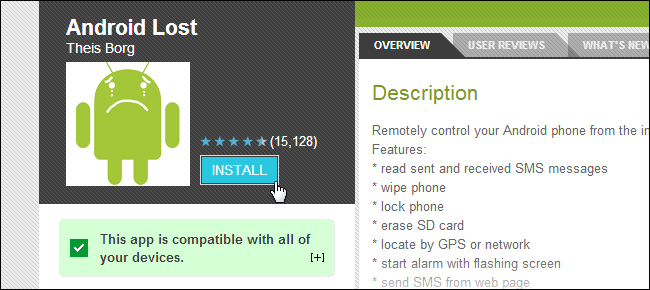
This is a more complicated way to track your phone. Basically, you need to install the tracking app ‘Android Lost’ on your phone and activate it by sending it an SMS (this can be done from any phone). How do you install something when you don’t have your phone with you? That’s very easy. You can install any app on all your registered devices directly from your browser through the Google Play website. Simply navigate to the Android Lost app and click the install button.
The remote installation process of Android Lost is very straightforward and only requires that your phone is still connected with your Google account. However, in case of theft, you have to hope that the thief doesn’t disconnect from your account.
So here’s what to do:
Step 1: Install Android Lost remotely
Install the Android Lost app remotely via Google Play in your browser and it will be installed on your phone remotely. As already mentioned, your phone still needs to be connected to your Google account. Otherwise, this won’t work.

Step 2: Activate Android Lost
If you are still in the possession of your smartphone or tablet then all you need to do is starting the app. But this is, obviously, probably not the case if you lost your phone. So, to register your device remotely, send an SMS with the text “androidlost register” to your phone. This SMS can be sent from any phone. This will trigger Android Lost to register itself using your Google account credentials.
If you own a tablet, SMS might not be an option. In that case, install “AndroidLost Jumpstart” before you install the actual Android Lost app. It will jump start the registration process when Android Lost is being installed.
Step 3: Log in to the Android Lost website
Visit the Android Lost website and sign in using your Google account. After doing that, you should have access to all remote control features such as the following:
- Read the latest SMS on your phone
- Force your phone to play a loud alarm with a flashing screen. Perfect if you misplaced your device.
- Get the location of your device
- Lock and unlock your phone
- Wipe your entire phone so no private data falls into the wrong hands
- Erase the SD card
- Use the camera to make pictures (front or rear camera) to get a nice shot of the nice person who took your device.
Note that it can take a while for the registration process to complete.
Android Lost is a great tool to get your phone back
I have to say that having the possibility to install and register this tool remotely makes it very powerful in case you lose your device. The only negative thing I experienced is that the notification of a new installed app called ‘Android Lost’ could tell a potential thief about what’s going on. Also, if enabled in your Play Store settings, an app shortcut will appear on the screen. The icon’s title is “Personal Notes” but after clicking on it, it gets clear what it’s about. Of course, you can disable this auto shortcut function in your Google Play app settings, but it’s hard to do so with the phone gone.
Here is a success story of a dad chasing down the man who stole his daughter’s phone with the help of Android Lost.
3. Plan B is the Android Lost alternative for devices running Android 2.0 – 2.3
If Android Lost is not working out for you and you’re phone is still running an older version of Android (2.0 up to 2.3) you could give Plan B from Lockout a try. Install the app directly from the Play Store (Link) to your device and, if successful, Plan B will send your device’s location to your Gmail address. It will send you a mail every 10 minutes with the current location. You can also use any other phone to send an SMS with “locate” to your phone to get the location via mail.
As already mentioned, Plan B only works with devices on Android 2.0-2.3, so it won’t work with most devices. Also, the app hasn’t been updated in a while, so I cannot guarantee that it will work.
4. How to use Dropbox to find your stolen phone (Android & iOS)
Dropbox can be your last resort if all other approaches don’t bring you any closer to finding your phone. For this to work, however, Dropbox needs to be installed on your phone and the “Camera Upload” feature has to be activated. This way, every time your phone’s thief takes a picture, it automatically gets uploaded to your Dropbox “Camera Uploads” folder. So, if he or she takes a nice selfie you might be able to identify the thief. And if you’re lucky, you can make out the location by looking at the background of the uploaded pictures.
So far, that’s the only way Dropbox can help you. Dropbox doesn’t give you the IP address of mobile devices which are connected to your Dropbox account. This is only possible for Desktop PCs and laptops until now.
I hope you are reading this just out of pure interest and not because you lost your phone! But if that’s really the case, I truly hope that this article will help you track it down. Either way, I recommend installing a good tracking app BEFORE your phone vanishes. An app I recommend is Cerberus, which is available on Google Play.
Have you been able to get back your mobile device after it got lost? How did you get it back?
Share your experience with us in the comments!
?
+
X
Recommended for you
Loading..