


How TO Install DropBox
6/06/2012
How does Dropbox work?
 At its most basic level, Dropbox is just another folder on your computer, and appears just like any other folder on your computer. However, the exception to a Dropbox
folder is that any files you store in this folder are automatically
synchronised with any other computer or device which you have linked to
your Dropbox account. As such any changes, additions, deletions to files
are synchronised too.
At its most basic level, Dropbox is just another folder on your computer, and appears just like any other folder on your computer. However, the exception to a Dropbox
folder is that any files you store in this folder are automatically
synchronised with any other computer or device which you have linked to
your Dropbox account. As such any changes, additions, deletions to files
are synchronised too. Imagine you have installed Dropbox on your computer in the UK, and you're just about to leave for a holiday at your villa in Turkey, but you have some files you need to take with you to use on your computer in Turkey. With Dropbox, all you have to do is to copy the files to your Dropbox folder on your UK computer. Then when you get to Turkey, install Dropbox on your local computer, and then through the power of Dropbox and the internet, the files from the UK computer will 'magically' appear on the computer in Turkey.
Best of all, the basic package is free, and very easy to use.
Installing Dropbox
- Download full version of Dropbox from Here
- Fill in the "Create a Free Dropbox Account" form, Click "Create Account"
- You will now see a download screen, your download should
automatically start. Once the download has finished, launch the download
by clicking either "Open", or "Run", or alternatively locate the
downloaded file and double-click it. The installation process should now
start.
- If you get a warning about running the installation, just click Run.
- Also click past any other installation warning you receive.
- The installation will now start, click "Install" to start"
- Wait a couple of minutes for the installation to complete. On the
next screen you will need to choose "I don't have a Dropbox account",
and click "Next"
- You will now need to complete your personal information for your
Dropbox account, this information is required to ensure security to your
account. Please ensure you use a secure password. Click "Next" when
you're done.
- Wait a few seconds for the information to be submitted, you will
then see the account selection screen where you can choose which level
of account you would like. Chose the top (free) option: "2GB Free".
Click "Next" (note: if you have used the above referral link you will
actually receive 2.25GB space).
- Now choose "Typical" and click "Next"
- The next few screens provide a tour - please take the time to look through this and get used to the concept of Dropbox.
- You're now done and can start using Dropbox!


How To Install VirtualBox on Windows 7
6/06/2012
Installing VirtualBox 4.0 on Windows 7
 Download Virtual box from here
Figure 1: Choose the installation options you want for VirtualBox
You have the option to install shortcuts to the desktop and to the Quick Launch bar. In Figure 2, you’ll see that you can simply deselect the checkbox next to a selection if you don’t want that particular shortcut.

Figure 2: Should any shortcuts be created?
During installation, network connections will be reset and you might temporarily lose network connectivity. The screen in Figure 3 provides you with ample warning.

Figure 3: A warning regarding network interfaces
Once you’ve made your selections, click the Install button to proceed.

Figure 4: Click the Install button to proceed

At various points during the installation, the installer will ask you if you want to install device driver software. In order for VirtualBox to be feature-complete, you should click the Install button each time one of these windows (Figure 5) pops up.
Figure 5: Install device drivers
Once the process is complete, you’ll be presented with a window indicating such (Figure 6).

Figure 6: The VirtualBox installation is complete

Once the installation is complete move on to installing the VirtualBox Extension Pack. Once the file is downloaded, run it. You’ll get a screen like the one shown in Figure 7 in which you’re asked if you want to install the Extension Pack. Click the Install button to proceed. You’re also asked to agree to the extension license (not shown).

Figure 7: Install VirtualBox Extensions
Verify that the extensions have been successfully installed by going to File > Preferences > Extensions. You’ll get a list of the extensions that have been installed on your system.

Figure 8: The extension was successfully installed
also read ....
Run Two OS Simultaneously With Virtual Box
Make Windows 7 Genuine
6/04/2012
 Windows
Loader is an application used to bypass WAT (Windows Activation
Technologies). The application itself injects a SLIC (System Licensed
Internal Code) into your system before Windows boots , because of which
your windows behaves as a genuine copy.
Windows
Loader is an application used to bypass WAT (Windows Activation
Technologies). The application itself injects a SLIC (System Licensed
Internal Code) into your system before Windows boots , because of which
your windows behaves as a genuine copy. Supported operating systems :
- Windows 7 Ultimate
- Windows 7 Ultimate E
- Windows 7 Professional
- Windows 7 Professional E
- Windows 7 Home Premium
- Windows 7 Home Premium E
- Windows 7 Home Basic
- Windows 7 Starter
- Windows 7 Starter E
- Windows Vista Ultimate
- Windows Vista Business
- Windows Vista Business N
- Windows Vista Home Premium
- Windows Vista Home Basic
- Windows Vista Home Basic N
- Windows Vista Starter
- Windows Server 2008 Enterprise
- Windows Server 2008 Enterprise (Hyper-V)
- Windows Server 2008 Foundation
- Windows Server 2008 Standard
- Windows Small Business Server 2008
- Windows Storage Server 2008 Standard
- Windows Server 2008 R2 Enterprise
- Windows Server 2008 R2 Foundation
- Windows Server 2008 R2 Standard
- Windows Small Business Server 2011 Standard

Note : Turn Off your antivirus before downloading and turn it on after installing the loader.
Compatible with both 32 and 64 bit systems.
Download Windows Loader v2.0.9
How To Test Hacking Tools Without a Risk of Infection
6/01/2012

In this security article, i will mention about software used by hacker to protect his computer from being affected from various hacking software loopholes, Sandboxie.

Generally, if you are visiting hacking forums or various forums of free software downloads, some of these free downloads are affected or are attached viruses and trojans for malicious purposes. So, if victim installs them on his computer, the malicious scripts get installed on computer causing various problems depending on script. So, the better way is to install such applications on your PC but using Sandboxie.
Sandboxie will allow you to run your software downloads in a sandbox (in a separate memory area) to check whether or not they're what you were expecting. This can be great if you don't trust a download or freeware.
The red arrows indicate changes flowing from a running application program into your computer. The box labeled Hard disk (no sandbox) shows changes by a program running normally. The box labeled Hard disk (with sandbox) shows changes by a program running under Sandboxie. The animation illustrates that Sandboxie is able to intercept the changes and isolate them within a sandbox depicted as a yellow rectangle. It also illustrates that grouping the changes together makes it easy to delete all of them at once.
Sandboxie features:
- Secure Web Browsing:
- Enhanced Privacy:
- Windows Stays Clean:
Requirements for Sandboxie:
Sandboxie supports windows 2000, windows XP, windows Vista and windows Server 2003.
Sandboxie does not work on Windows 95, 98 or ME, or on Mac operating systems.
There are no particular hardware requirements. Sandboxie needs only a small amount of memory and should have a very small impact on performance.
Windows 2000 users:
You may need to install GDIPLUS.DLL if you don't already have it.
Languages that Sandboxie support:
English, Chinese (Simplified), Finnish, German, Japanese, Korean, Polish, Portuguese (Brazil) and Turkish.
Download Sandboxie
So friends, download this free software, Sandboxie, and protect your computer from harmful viruses, and scripts. Now on, no need to spend time in removing malicious software. Just install Sandboxie and start installing free softwares without any fear.
Send Free SMS Online to Mobile
5/31/2012
http://www.junglesms.com/

http://www.free--sms.com/
http://www.spicesms.com/sendsms.php
http://cellbharat.com/sms/
http://www.paisasms.com/login.aspx
http://smsfree4all.com/
http://smsgupshup.com/
http://www.atrochatro.com/
http://www.smspress.com/
http://www.freesms.com/
http://www.textmefree.com/
http://www.rosms.home.ro/

http://www.free--sms.com/
http://www.spicesms.com/sendsms.php
http://cellbharat.com/sms/
http://www.paisasms.com/login.aspx
http://smsfree4all.com/
http://smsgupshup.com/
http://www.atrochatro.com/
http://www.smspress.com/
http://www.freesms.com/
http://www.textmefree.com/
http://www.rosms.home.ro/
"How to Become World 's no. 1 Hacker" Book written by Gregory D. Evans
5/31/2012
"How to Become world 's no. 1 Hacker"
written by Gregory D. Evans

Index

- Introduction
- Table of contents
- Preface
- Attack basic
- Account basic
- Password basic
- Denial of Service basic
- Logging basic
- Miscellaneous basic
- Spyware
- Web browser as Attack point
- Web browser as Attack tool
- The basic web server and Web scanning
- Port Scanning
- Unix Account
- Unix Password
- Unix local attack
- Unix remote attack
- Unix logging
- SQL injection
- Packet sniffing
- Spoffing and High jacking
- Social Enginnering
- How to perform penetration test using Metaspoit
- Cracking a wireless
- Hacking cell phone voice mail
- How to become a hacker in 15 min
- Making money as a hacker
- Glossary of terms
- Notes
You can free download this book from the links given below -
http://www.4shared.com/rar/QXOt1jGh/Become_world_s_no_1_Hacker.html
Get Gmail Mail Alerts on your Mobile by SMS FREE
5/31/2012
- First Sign up an account with way2sms.com
- After SignUp you will get a confirmation code on the Mobile to Prove your Authentication,If you verify the code your account will be activated.
- Login to your account in way2sms.com

- After that Go to Mail Alerts Section,which is just located besides,see the bellow image.

then you will see this window.........
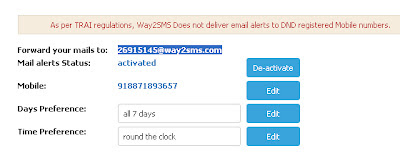
copy the highlighted text ...
- Logon to your Gmail account
- click on settings & then click on 'FORWARDING/POP/IMAP' option
- Select 'Forward a copy of incoming mail to" option & Enter your Way2SMS Email ID 26915145@way2sms.com there.

- Gmail sends a verification code to 26915145@way2sms.com.
- You will receive gmail confirmation mail alert on your mobile with subject line containing confirmation code.
- Copy and paste the verification code in Gmail verification box.Click On Verfy.
- Finished. You will now receive alerts for every incoming mail that arrives in your gmail id.


.jpg)
.jpg)

.jpg)


